How to Reduce Ping: 10 Fixes for Faster, Low-Latency Gaming
Few things ruin a match faster than lag. You peek a corner, click on an enemy’s head — and die anyway, because on the server, you were never really there. That delay is ping, and learning how to reduce ping is the single most effective free upgrade a competitive player can make. This guide explains what ping actually measures, what counts as a good number, and the 10 fixes that genuinely lower latency, ordered from the biggest wins to the finishing touches.
What Is Ping, and What Is a Good Ping?
Ping measures round-trip latency: how many milliseconds it takes for data to travel from your PC to the game server and back. It is not the same as download speed. A connection can download at 500 Mbps and still have terrible ping if the route is long or congested.
Ping ranges that matter
- Under 20 ms: excellent — typical on a nearby server with a wired connection.
- 20–50 ms: great for competitive play; most players notice no delay.
- 50–100 ms: playable, but fast shooters start to feel slightly off.
- Over 100 ms: visibly delayed — peeking and trading shots become unfair.
- Over 150 ms: rubber-banding and teleporting opponents; time to fix something.
Also watch for jitter (ping that swings wildly, like 20 ms to 180 ms) and packet loss. A stable 60 ms often feels better than a spiky 30 ms average, because consistency lets your aim and timing adapt.
The 10 Fixes for Lower Ping
1. Use an Ethernet cable — the biggest single fix
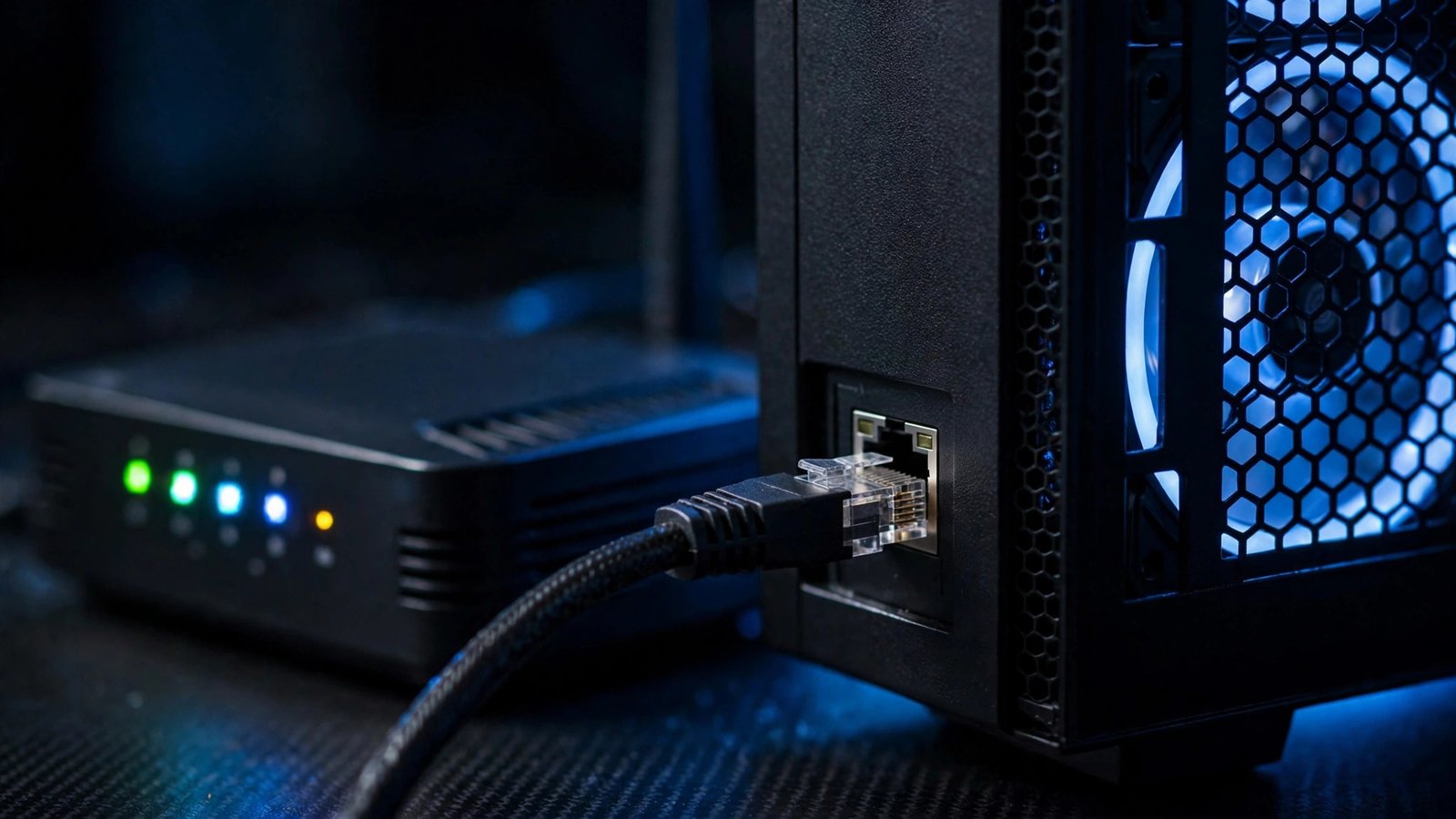
Wi-Fi adds latency and, worse, inconsistency: walls, distance, and interference from neighbouring networks cause spikes exactly when fights happen. Plugging your PC or console directly into the router with an Ethernet cable typically cuts ping and nearly eliminates jitter. If running a cable is impossible, a powerline adapter or a mesh node with a wired backhaul is the next best step. This one change fixes more “lag” complaints than everything else on this list combined.
2. Play on the closest server region
Distance is physics: data cannot travel faster than light, and every thousand kilometres adds delay. In your game’s settings, choose the geographically nearest server region rather than letting it default elsewhere, and avoid playing on friends’ distant servers for ranked matches. A player in London connecting to a US East server starts with an 80 ms handicap no setting can remove.
3. Stop other devices and apps from hogging the connection
Your ping spikes when someone starts a 4K stream, a cloud backup, or a big download on the same network. Pause large downloads and game updates while you play, and check your own PC too — Steam, Windows Update, and cloud sync tools love to start working mid-match. On shared connections, enable Quality of Service (QoS) or SQM in your router settings and prioritize your gaming device; this alone can flatten spikes even in a busy household.
4. Restart and update your router
Routers are small computers, and they slow down over weeks of uptime. A restart clears memory and renegotiates the connection, often fixing creeping latency. Check for firmware updates in the router’s admin page too — manufacturers regularly patch performance and stability issues. If your router is a free ISP box more than a few years old, a modern replacement is one of the best gaming upgrades money can buy.
5. If you must use Wi-Fi, optimize it properly
Sometimes wireless is the only option. Improve it by using the 5GHz band (faster and less congested than 2.4GHz at short range), keeping a clear line of sight to the router where possible, and choosing the least crowded channel with a free Wi-Fi analyzer app. Position the router centrally and elevated, away from microwaves and thick masonry. These steps will not match a cable, but they can turn an unplayable connection into a decent one.
6. Close background apps on your PC
Programs syncing, streaming, or updating in the background add local processing and network contention. Before a session, close browsers with dozens of tabs, pause cloud drives, and check Task Manager’s network column for anything unexpectedly active. Overlays themselves are usually harmless, but a forgotten torrent client or backup job will quietly wreck your latency.
7. Check for packet loss and faulty cables
Intermittent spikes often trace back to hardware: a damaged Ethernet cable, a loose connector, or failing powerline adapters. Run a continuous ping test to your router — if you see loss or spikes even locally, the problem is inside your home, and swapping a $10 cable may fix it. Loss that appears only beyond your router points to your ISP or the line itself, which is worth a support call with your test results attached.
8. Use a gaming VPN or route optimizer — carefully
Counterintuitively, a VPN can lower ping when your ISP routes traffic to the game server badly, because the VPN takes a shorter path. Gaming-focused services exist specifically for this. Results vary by location, so use free trials and measure before and after. A standard VPN usually adds latency, so this is a test-it-yourself fix, not a guaranteed one.
9. Set your game to exclusive fullscreen and cap background frame load
This does not change network ping itself, but it fixes perceived input delay that players often call “lag.” Exclusive fullscreen reduces rendering latency compared with borderless windowed mode on many systems, and capping frame rate slightly below your GPU’s maximum keeps frame times consistent. Distinguishing input lag from network lag saves you from fixing the wrong problem.
10. Upgrade your internet plan — the right way
If your fixes run out, the issue may be your line technology rather than its speed. Fibre connections deliver far lower and more stable latency than old DSL or congested cable in many areas. When comparing plans, prioritize the connection type and the provider’s reputation for latency over headline download numbers — for gaming, 100 Mbps of clean fibre beats 500 Mbps of unstable cable.
Frequently Asked Questions
Does a faster internet plan lower ping?
Not directly. Ping depends on distance, routing, and connection stability, not bandwidth. A bigger plan only helps if your current one is being saturated by other devices — the fix there is bandwidth headroom, not speed itself.
Why is my ping low in menus but high in matches?
Menus often ping a nearby login server, while matches connect to regional game servers that may be farther away. Also check that the game has not placed you in another region, and test during peak hours, when congestion raises latency.
What is the difference between ping, jitter, and packet loss?
Ping is the average travel time. Jitter is how much that time varies — high jitter feels like stutter even at low average ping. Packet loss means some data never arrives, causing rubber-banding. Good gaming connections need all three under control.
Can a new router really reduce ping?
Yes, if your current router is old or overloaded. Modern routers handle multiple devices, QoS, and Wi-Fi standards far better. The improvement is biggest in busy households and on Wi-Fi; on a single wired device, gains are smaller.
Conclusion
Knowing how to reduce ping is mostly about removing obstacles between you and the server: wire your connection, pick the closest region, calm your household network down, and keep your router healthy. Work through the fixes in order, test after each one, and you will usually land in the stable 20–50 ms range where games feel the way they were meant to.