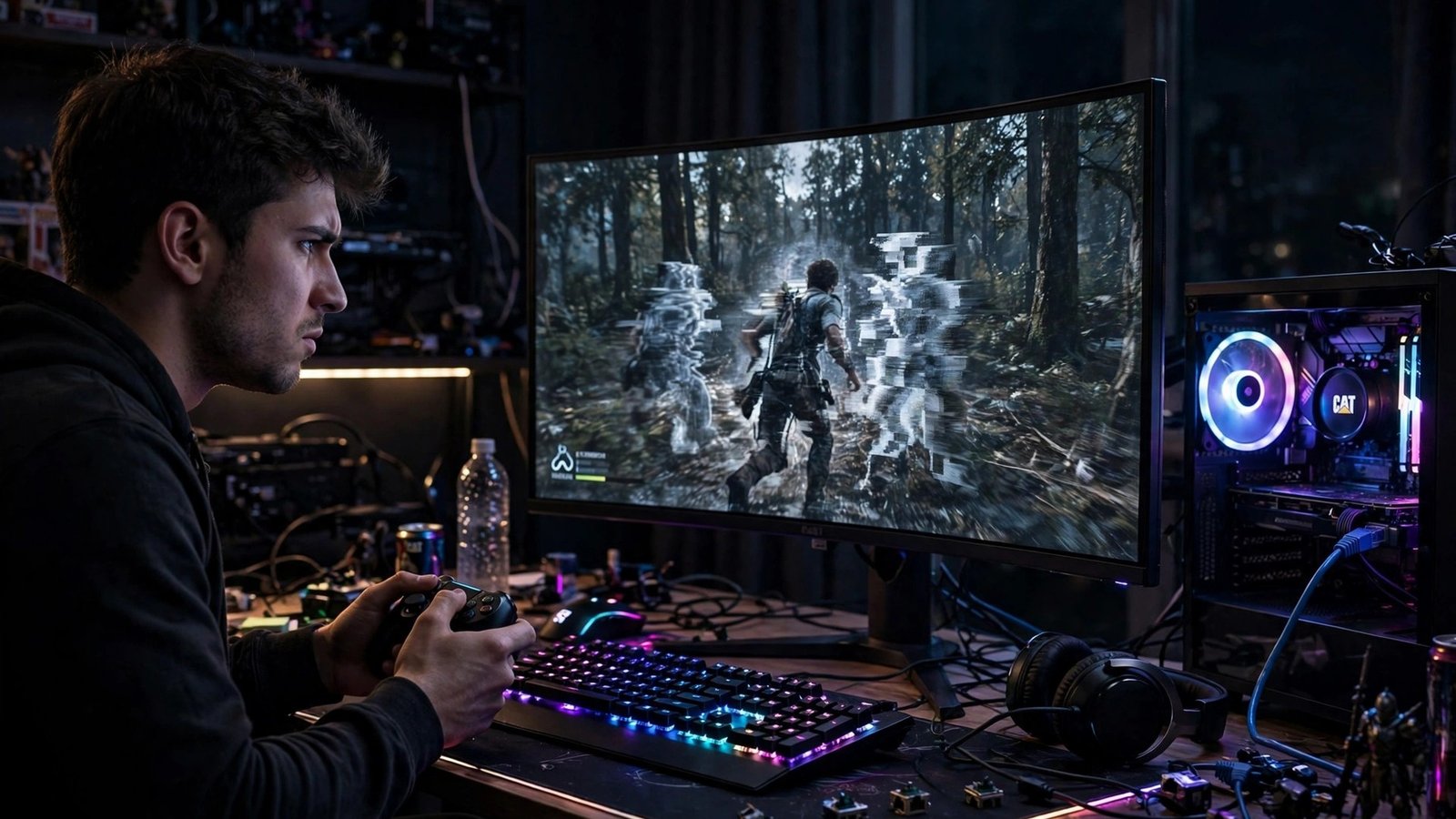
How to Fix Lag in Online Games: 10 Proven Ways to Stop Lag and Stutter
Nothing kills a good match faster than lag. You press a button, your character reacts half a second later, enemies teleport across the screen, and a fight you should have won is lost before you even see it happen. Lag is the single most frustrating problem in online gaming — and the good news is that most of it is fixable. In this guide to how to fix lag in online games, we walk through the ten fixes that actually work, from the free five-minute checks to the hardware upgrades worth paying for, so you can stop blaming your connection and start playing on a level field.
What Lag Actually Is (and Why It Happens)
Lag is any delay between your input and what happens on screen, and it comes from three different places that often get confused. Network lag is the delay between your device and the game server, measured in milliseconds as ping. Frame lag is your own hardware struggling to render the game fast enough, which shows up as stutter and low frame rates. Input lag is the delay between pressing a button and the game registering it, often caused by your TV or monitor settings. Fixing lag means figuring out which of the three you have — and most players have a mix of all three.
A simple way to tell them apart: if other players freeze or teleport while your own movement feels smooth, that is network lag. If the whole game stutters even in menus or offline modes, that is frame lag. If everything looks smooth but your actions feel sluggish and delayed, that is input lag. Keep this distinction in mind as you work through the fixes below, because each one targets a different cause.
1. Switch to a Wired Ethernet Connection
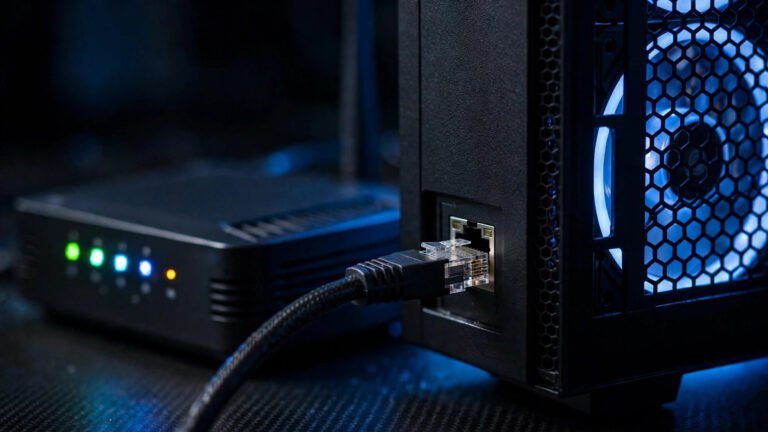
This is the single biggest upgrade most players can make, and it costs almost nothing. Wi-Fi is convenient, but it adds latency and jitter — small, random spikes in delay — because the signal has to fight through walls, interference from neighbours, and other devices on your network. A wired Ethernet cable gives your console or PC a direct, stable path to the router, typically cutting 5–20 ms off your ping and, more importantly, removing the random spikes that cause rubber-banding.
If running a cable across the house is not practical, a powerline adapter that sends the signal through your home’s electrical wiring is a solid second choice. It is not quite as good as a direct cable, but it is far more stable than Wi-Fi for gaming. Whatever you do, avoid gaming on a shared public network or a mobile hotspot if you can help it.
2. Close Background Apps and Downloads
Your game is competing for bandwidth and processing power with everything else running on your device. Cloud backups, game updates downloading in the background, streaming apps, browser tabs with auto-playing video, and even Windows Update can quietly eat your connection and your CPU. Before an important session, close anything you do not need.
On PC, open Task Manager and check the Network column to spot the worst offenders. On consoles, pause any downloads or updates in the queue. And in the wider house, ask family or housemates to pause big downloads or 4K streams during ranked matches — one person streaming in 4K can saturate a modest connection.
3. Choose the Closest Game Server
Every extra kilometre between you and the server adds delay, and some games default to a server region that is not the closest one. Check the server browser or region setting in your game’s options and pick the region nearest to you. A server in your own country should give you a ping under 30 ms on a decent connection; a server on another continent can easily add 150 ms or more.
If your game only shows ping after you join, use the first few minutes of a casual match to test different regions and note the numbers. Once you find the lowest stable region, lock it in. Some games also let you set a maximum acceptable ping for matchmaking — use it, because a match on a far-away server is a match you are likely to lose to lag before skill.
4. Restart Your Router (and Update Its Firmware)
Routers are small computers, and like all computers they get slower and buggier the longer they run without a restart. A simple reboot — unplug it for 30 seconds, then plug it back in — clears memory leaks, drops stale connections, and forces a fresh handshake with your internet provider. Many players are surprised how much this alone helps.
While you are at it, check whether your router has a firmware update. Manufacturers regularly release updates that fix bugs and improve stability, and most routers can check for them from their admin page. If your router is more than five years old, it may also be worth replacing: older Wi-Fi standards and slower processors genuinely struggle with modern gaming traffic.
5. Turn On QoS and Prioritise Gaming Traffic
Quality of Service (QoS) is a router setting that lets you tell your network which traffic matters most. With QoS enabled and your console or PC set as the priority device, the router will reserve bandwidth for your game and delay less important traffic like background updates and smart-home chatter. On many routers this is a simple on/off toggle plus a device list.
Gaming routers take this further with features like geo-filtering, which blocks connections to far-away servers, and traffic shaping that specifically recognises game packets. You do not need a gaming router to benefit from QoS, though — even a basic router with the setting turned on can smooth out the spikes that ruin matches.
6. Lower Your Graphics Settings for a Stable Frame Rate
When your frame rate drops, the game feels laggy even if your connection is perfect. If you are chasing smooth gameplay, target a stable frame rate rather than a high one: a locked 60 frames per second feels far better than a frame rate that swings between 40 and 120. Drop the most expensive settings first — shadows, reflections, and anti-aliasing — and keep textures at a level your graphics card can handle comfortably.
On PC, check the detailed breakdown in our guide to how to get more FPS, which covers the twelve settings that make the biggest difference. On console, look for a performance mode in the game’s settings; it trades some visual detail for a much steadier frame rate, and for competitive play that trade is almost always worth it.
7. Turn On Your Monitor’s Game Mode
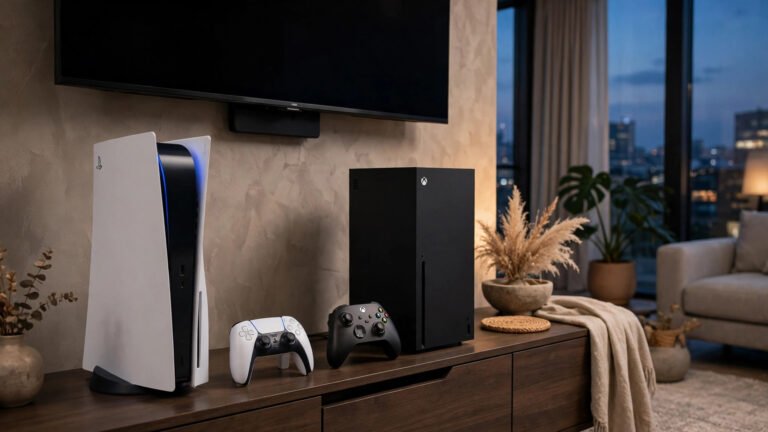
Many TVs and monitors add 30–80 ms of input lag through image processing features like motion smoothing, noise reduction, and dynamic contrast. Game Mode turns most of that processing off and is the single easiest fix for input lag on a TV. It is usually buried in the picture settings menu, and it makes a night-and-day difference for fast-paced games.
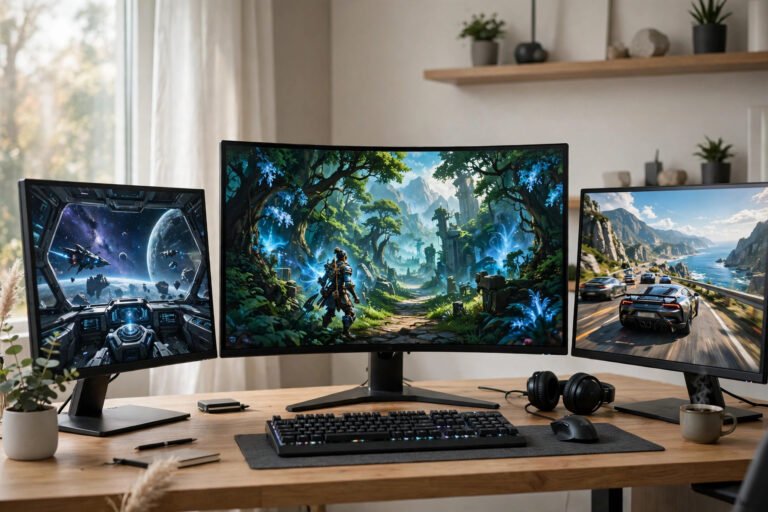
If you play on a monitor, check that you are actually running at its advertised refresh rate — Windows sometimes defaults to 60 Hz on a 144 Hz display. Go to display settings, advanced display settings, and set the refresh rate to the highest available. A higher refresh rate alone makes motion clearer and your inputs feel more responsive.
8. Update Your Drivers and the Game Itself
Outdated graphics drivers are a classic cause of stutter, crashes, and poor performance after a game update. Graphics card makers release new drivers for major game launches, and those drivers often contain specific optimisations. Check for driver updates at least once a month, and always update before a big new release.
The same applies to the game itself. Developers regularly ship patches that fix server issues, optimise performance, and reduce lag — playing on an old version can leave you on a buggy build while everyone else is on the fixed one. Enable automatic updates for your most-played games so you never fall behind.
9. Check Your Ping Properly and Talk to Your Provider
If you have tried everything above and still see high ping, the problem may be your internet plan or your provider’s routing. Run a wired speed and ping test at different times of day: if your ping is fine at 3 a.m. but terrible at 8 p.m., your neighbourhood network is congested at peak hours. If your ping is always high, your plan’s upload speed may be the bottleneck, since online games need steady upload as well as download.
For a deeper look, our guide on how to reduce ping explains how to read ping tests, test different servers, and spot routing problems you can raise with your provider. If your provider’s routing to game servers is poor, a gaming VPN can sometimes find a shorter path — but test it carefully, because a bad VPN makes things worse.
10. Upgrade the Right Hardware, in the Right Order
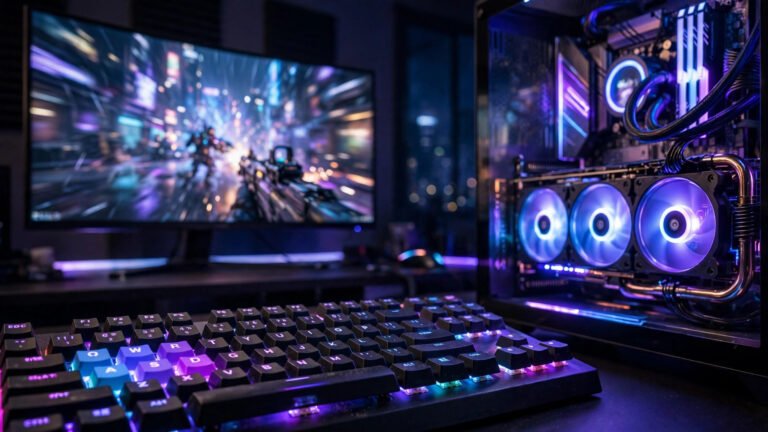
If software fixes are not enough, spend money in the order that matters most for lag. First, a decent router with modern Wi-Fi and QoS. Second, enough RAM and a solid-state drive, so the game loads and runs without hitching. Third, a graphics card that can hold your target frame rate in the games you actually play. A new graphics card will not fix a bad connection, and a new router will not fix low frame rates — match the upgrade to the problem you diagnosed at the start.
One upgrade that punches above its weight is a monitor with a higher refresh rate and low response time. Moving from a 60 Hz TV to a 144 Hz monitor changes how responsive every game feels, and it is often cheaper than a graphics card upgrade for the improvement you get.
Frequently Asked Questions
What is a good ping for online gaming?
Under 30 ms is excellent, 30–60 ms is good for almost all games, and 60–100 ms is playable but noticeable in fast shooters. Above 100 ms, you will feel the delay in competitive play, and above 150 ms most games become frustrating. Consistency matters as much as the number — a steady 50 ms beats a ping that swings between 20 and 200.
Does lag come from my internet speed or my PC?
It can come from either, and often from both. Network lag shows up as other players teleporting and delayed hits, while PC lag shows up as stuttering and low frame rates even in offline modes. Test offline first: if the game stutters without any network involved, your PC is the problem. If offline play is smooth and only online matches lag, your connection is the problem.
Can a VPN reduce lag in games?
Sometimes, but only in specific cases. A VPN can help if your provider routes your traffic to the game server through a slow or congested path, because the VPN may take a shorter route. But a VPN also adds its own overhead, so for most players it increases ping slightly. Only try one if you have already ruled out the simpler fixes, and always compare your ping with and without it.
Why do I lag even with fast internet?
Raw download speed is rarely the cause of lag. What matters is latency, stability, and how your connection handles real-time traffic. A 25 Mbps connection with low, stable ping will play better than a 500 Mbps connection with jitter, packet loss, or a congested router. Wi-Fi interference, background downloads, and a far-away server are the usual culprits on fast connections.
Conclusion
Fixing lag in online games is a process of elimination: start with the free fixes — a wired connection, closing background apps, and picking the closest server — then work through router settings, graphics options, and drivers. Most players find that two or three of these changes solve the problem completely, and the improvement is immediate. Lag is not something you have to live with. Diagnose which kind you have, fix it at the source, and get back to winning matches on skill instead of losing them to delay.